How to Add Your Openings
An opening is a spot you have free, from a date you choose and for as long as you like. Posting one does two things: it shows on your listing, and it puts you in the email we send families every Saturday morning. A listing with no openings still appears in search, but it is not in that email at all.
If you have not filled in your listing yet, start with how to fill out your listing and come back to this.
Where openings live
Open your listing from the dashboard and find the Waitlists and openings section. Everything to do with availability sits here: the spots you have free, and the queue of families waiting for the next one.
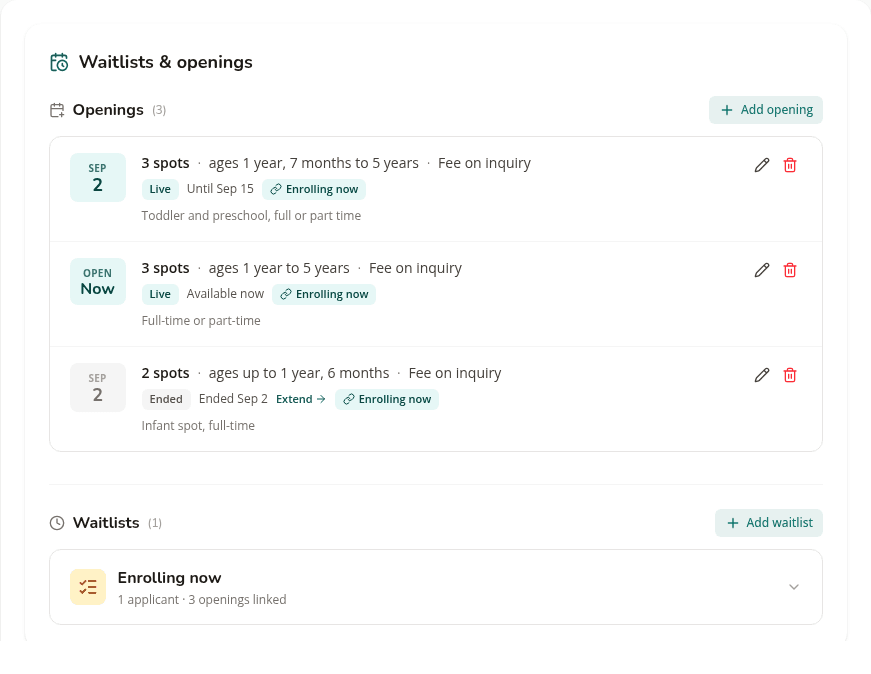
The two are different things and it helps to keep them apart. An opening is a spot you can offer, available from a date. A waitlist is the queue of families waiting for one. You can have a waitlist with no openings, which is the normal state when you are full, and every opening belongs to a waitlist.
One thing to know if you cannot find this section: it does not appear while you are first creating a listing. Save the listing, reopen it from your dashboard, and it is there.
Post an opening
Choose Add opening and the form appears above your existing ones.
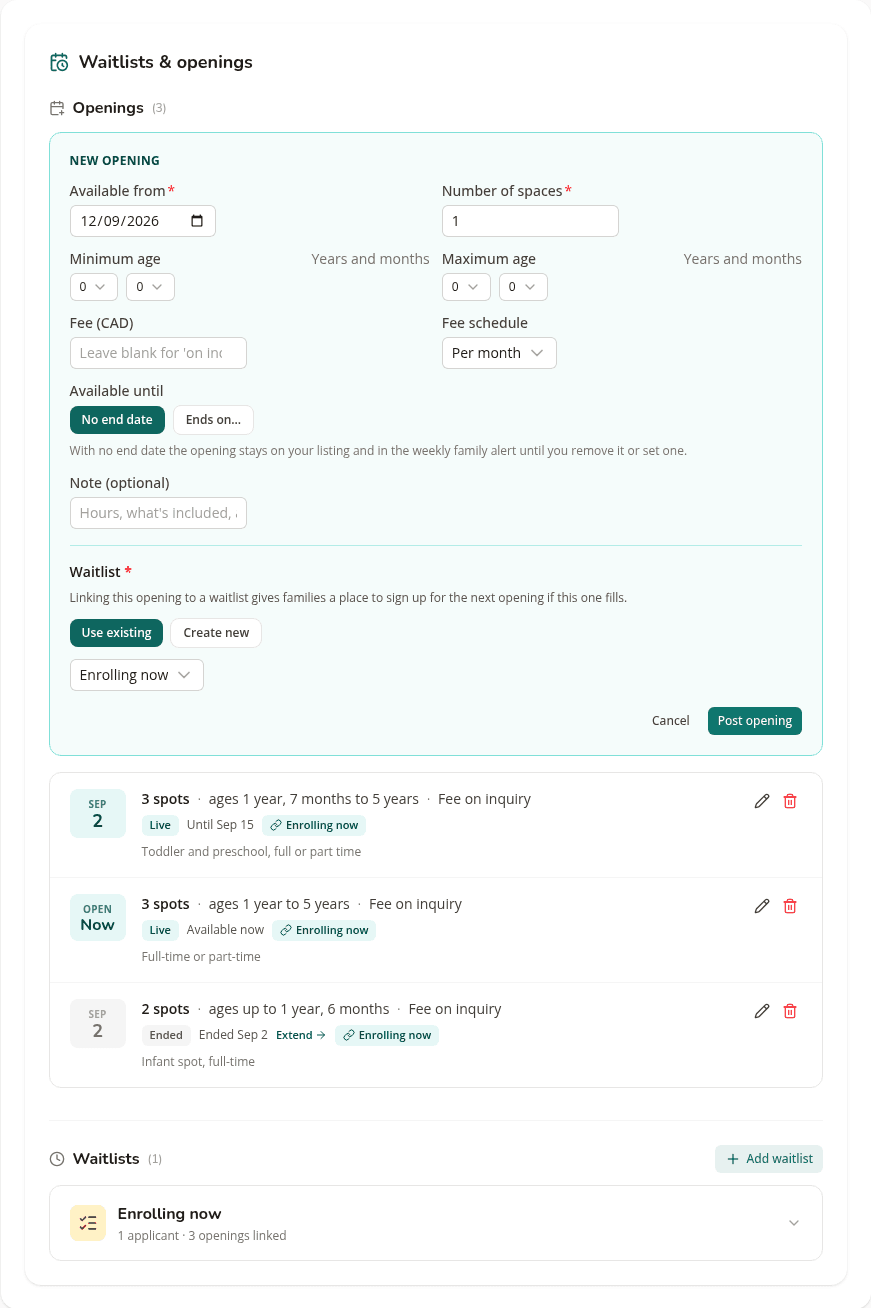
Available from and number of spaces are the only two things you must fill in. Available from is today unless you change it.
Available until is your choice. Leave it on No end date and the opening stays on your listing, and in the weekly email, until you remove it. Choose Ends on and a date if you know when the spot closes, and it comes down on its own that day.
The weekly email carries every opening that is open at any point in the next month, so an opening with no end date is in every send, and one that starts more than a month out waits its turn.
Minimum and maximum age are optional, and you set them in years and months. A spot for babies might run from 0 to 18 months. A spot suiting toddlers through preschool might run from 1 year 7 months to 5 years. Leaving them blank means the spot suits any age you are licensed for.
Fee is optional too. Leave it blank and your listing shows "Fee on inquiry", which is the right choice if your rate depends on days, hours or subsidy. Worth knowing either way: the fee never appears in the family email. It is only on your listing.
Note is a free line for the things families ask straight away. "Full-time, Monday to Friday" or "Part-time considered" saves you a phone call.
Every opening needs a waitlist
The form asks you to link the opening to a waitlist, and you can either use one you already have or create one as you go. A single waitlist named something like "Enrolling now" is enough to start with.
This is worth doing rather than working around. When the spot fills, the families who were interested are already in a queue instead of scattered across your inbox, and you can call the next one without going hunting. It also gives a family who arrives a month too early somewhere to put their name.
What families see
Once posted, the opening appears on your public listing under Availability, grouped by the waitlist it belongs to, with the ages it suits. A spot open now with no end date reads "Now"; one with an end date shows when it ends.
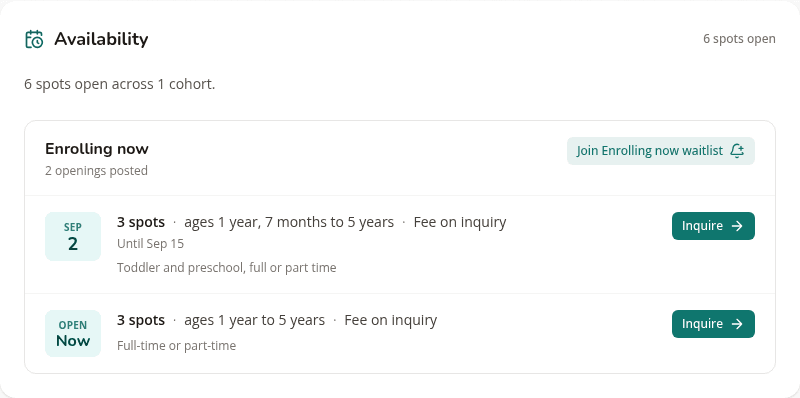
Parents can inquire about a specific spot, or join the waitlist if the timing is not right for them yet. Either way the details come to you, and you can read more about how those arrive in how families find your listing.
Splitting spots by age
If you have room for different ages, separate openings read better than one wide range. A parent looking for infant care sees a line that matches instead of a 0 to 5 range they have to interpret.
One caution if you do split them. The weekly email adds up the spaces across your openings, so divide your total between them rather than repeating it. Seven spots posted as two openings should read as three and four, not seven and seven.
Keep them current
Each opening in your dashboard carries a label: Live while families can see it, Scheduled if it starts later, Ended once its end date has passed. An ended opening is off your page and out of the weekly email, and it has an Extend button that puts it back with no end date, without retyping anything.
Use the pencil to edit an opening when the dates or the number change, and the bin to remove one that has filled. An opening with no end date never comes down on its own, so when a spot fills, remove it, or families keep seeing it. If you would rather keep a spot listed but stop taking new enquiries for a while, there is a pause control on the listing itself, which leaves you findable without the inbox.
If you have nothing free right now
Post the waitlist anyway. A family searching today is often planning for three months' time, and a waitlist with your name on it is how they find you before you have anything to offer. When a spot does open, you already have people to call.
List your daycare on FindChildcare.ca — for free
Parents are searching. Get found, manage openings, and run your waitlist — all in one place, no charge.
Create your free listing